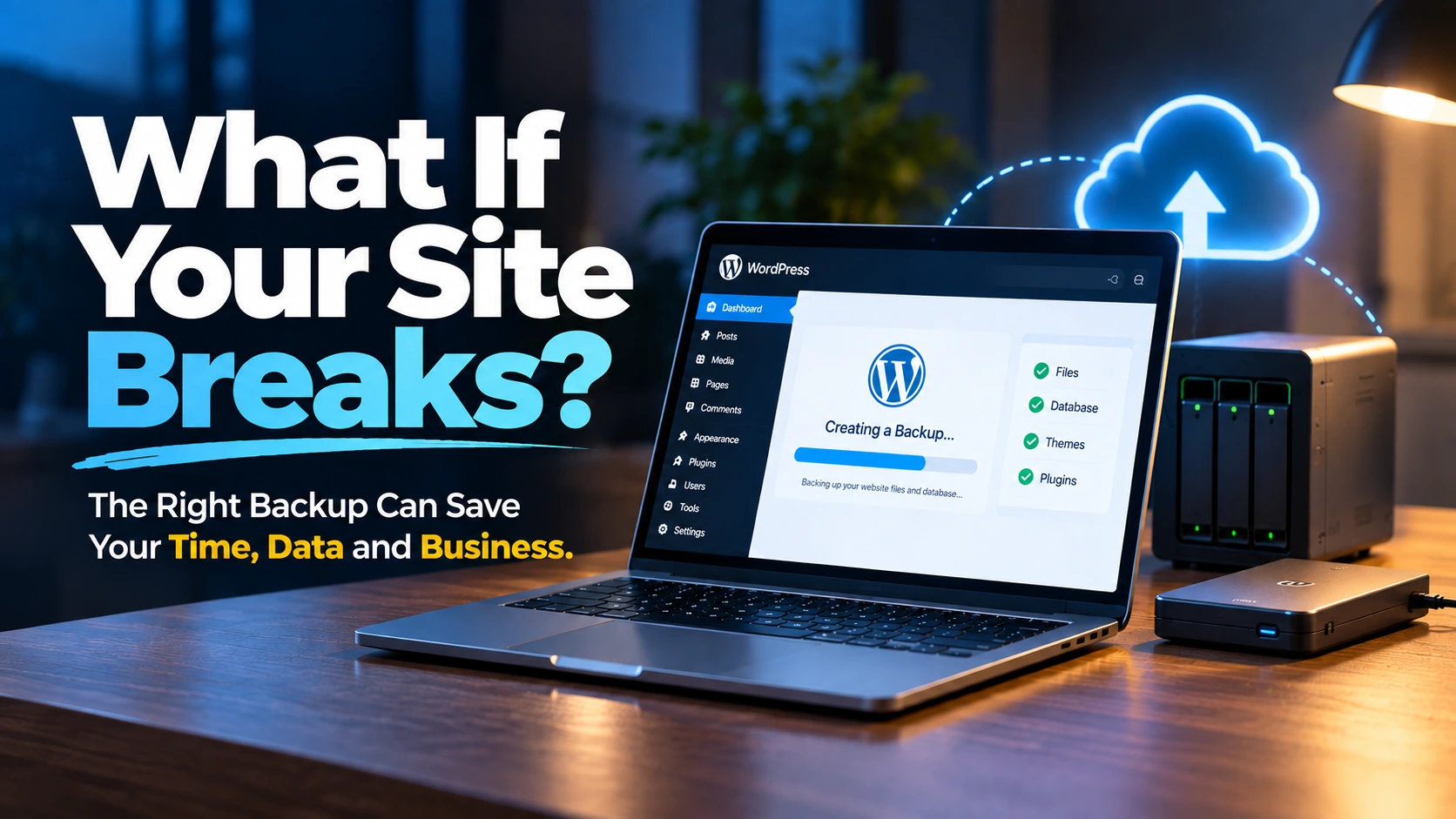
A WordPress website can represent months or years of work. Your pages, images, forms, customer information, products, blog posts, settings, and design are all part of that investment. Yet backup is often something business owners think about only after an update breaks the site or something important disappears.
The problem is not simply that you need a backup. You need a backup system that actually matches how your website operates.
A brochure-style website that changes once a month does not necessarily need the same backup approach as an ecommerce store receiving orders every day. A service business with regular content updates has different recovery needs from a membership site or a website managed by several people.
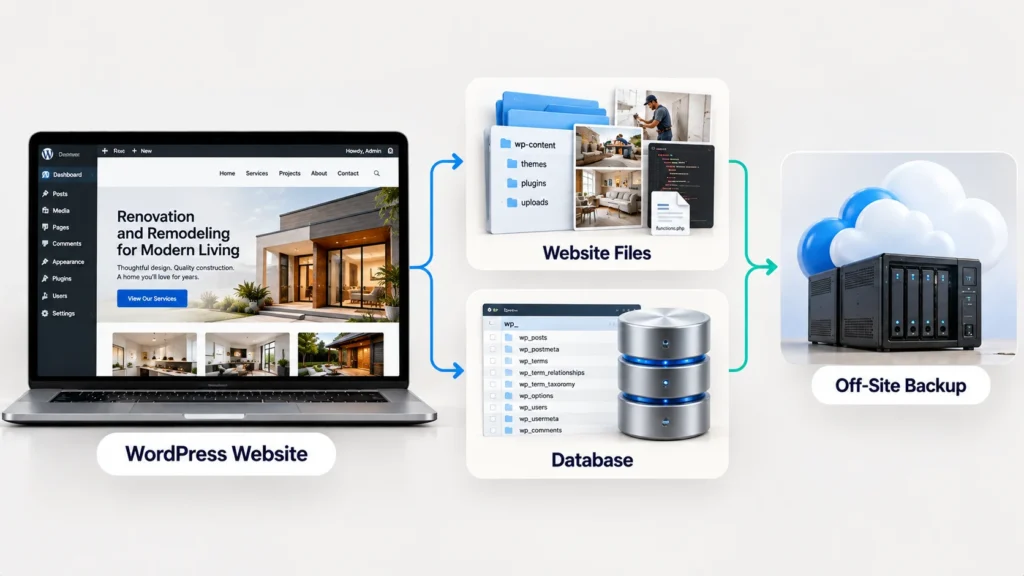
WordPress itself separates a complete site backup into two important parts: files and the database. The files contain things such as themes, plugins, uploads, and other site files, while the database contains content and settings that cannot simply be recovered by copying the website files.
That is why choosing a backup solution should start with your recovery needs, not with a plugin’s feature list.
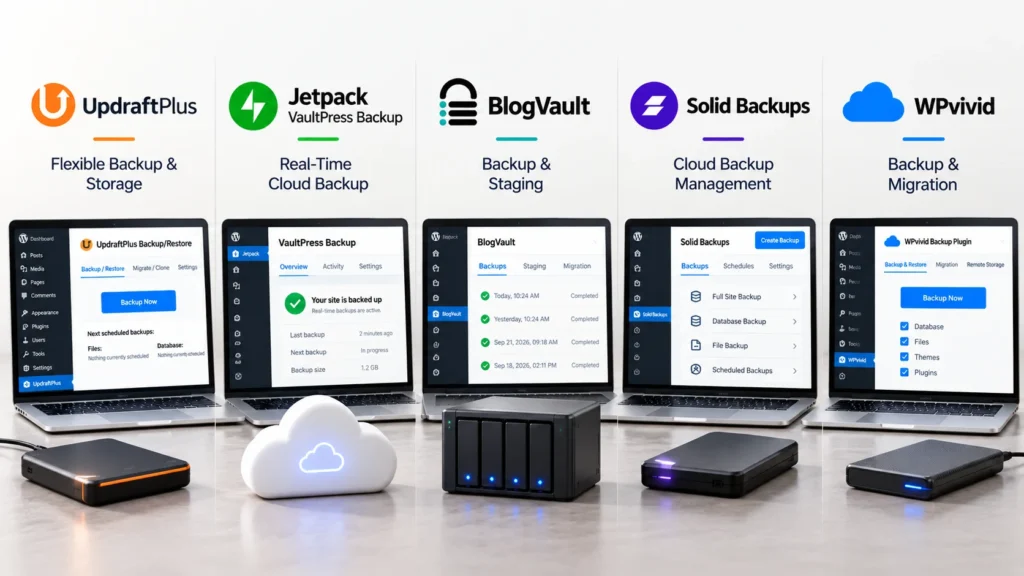
Here are five WordPress backup solutions worth knowing about and the situations where each approach can make sense.
What a Business Owner Should Expect From a WordPress Backup System
Before looking at specific solutions, it helps to establish what “good backup” actually means.
A backup system should give you a reliable way to recover the website, not simply create a file somewhere on your server.
At a minimum, look for a solution that can handle:
- WordPress files
- The WordPress database
- Automatic or scheduled backups
- Off-site storage
- A clear restore process
- Backup history
- Manual backups before important changes
- Notifications or some way to confirm backups are actually running
The exact frequency depends on how quickly your website changes. WordPress’s own documentation notes that backup frequency should reflect how often your site changes and how much data you could afford to lose.
For a website that rarely changes, a different schedule may be reasonable than for a site publishing content every day or processing customer orders.
The more important question is this:
If your website stopped working today, how much recent work could you afford to lose?
That answer should influence your backup schedule.
1. UpdraftPlus
UpdraftPlus is one of the more established WordPress backup options and is designed around scheduled backups, remote storage, restoration, and migration.
Its official documentation says the plugin can back up WordPress files and the database, schedule backups at different intervals, and send backups to remote storage such as Google Drive, Dropbox, Amazon S3, FTP, and other supported destinations.
That makes it useful when you want more control over where your backups are stored and how often they are created.
For example, you might have a service-business website that receives regular enquiries and gets updated every few days. You could configure scheduled backups rather than depending on someone to remember to create them manually.
UpdraftPlus also offers premium features such as incremental backups, automatic backups before WordPress updates, additional storage destinations, and the ability to back up to multiple locations.
That distinction matters because a backup strategy can become more useful when it is connected to the way you maintain the website.
When this approach may make sense
UpdraftPlus may be worth considering if you want:
- Flexible backup scheduling
- Multiple remote storage options
- Manual and automated backups
- A familiar WordPress dashboard workflow
- Additional backup and migration features as your needs grow
The important thing is to configure it properly. Installing a backup plugin and never checking whether backups are completing is not a complete backup strategy.
2. Jetpack VaultPress Backup
Jetpack VaultPress Backup takes a different approach by emphasizing cloud-based backups, real-time changes, and quick restoration.
According to Jetpack’s current documentation, VaultPress Backup creates backups off-site and supports real-time backups for changes such as published or updated posts and pages, media changes, theme and plugin changes, settings, users, and WooCommerce activity.
That can be particularly relevant when the website changes frequently.
Imagine an ecommerce site where orders are being placed throughout the day. A daily backup may still leave a large gap between the latest backup and the moment something goes wrong. A solution that captures changes more frequently can reduce that gap.
Jetpack also provides one-click restoration and allows site owners to browse backup history and restore a site to a previous point.
For business owners, that restoration experience deserves as much attention as the backup itself.
A backup that exists but is difficult to restore during an emergency can create a very different experience from a system where recovery is straightforward.
When this approach may make sense
VaultPress Backup may be relevant if your website:
- Changes frequently
- Runs WooCommerce
- Needs off-site, cloud-based backup storage
- Would benefit from real-time backup activity
- Needs a straightforward restoration workflow
It is also worth checking the current retention and storage terms before choosing a plan because those details vary by product and plan.
3. BlogVault
BlogVault approaches WordPress backup as part of a broader site management and recovery system.
Its current documentation describes automatic backups, incremental backups, off-site storage, backup history, one-click restoration, staging, and migration features.
One useful distinction is that BlogVault’s management environment is separate from the WordPress dashboard. That can become valuable when the WordPress admin area itself is inaccessible.
A backup stored inside the same website environment is not as useful if you cannot access the website properly.
BlogVault also provides staging functionality, allowing you to create a staging site from a selected backup version and test changes without affecting the live website.
That makes the solution relevant beyond emergency recovery.
For example, suppose you need to update a theme, change several plugins, or test a significant design change. A backup combined with a staging environment gives you a safer way to approach that work.
When this approach may make sense
BlogVault may be worth considering if you want:
- Independent off-site backups
- Incremental backup capabilities
- A separate management environment
- Staging and testing
- Migration tools
- More structured recovery workflows
It can be particularly interesting when your website is becoming more operationally important and backup is no longer something you want to manage entirely from inside WordPress.
4. Solid Backups
Solid Backups is another WordPress backup option with scheduled backup, restoration, remote storage, and migration capabilities.
SolidWP’s current documentation describes Solid Backups as a cloud-based system for backing up WordPress sites and restoring them to a previous state. It is designed to use SolidWP infrastructure rather than relying entirely on the resources of the website’s hosting environment.
Its documentation also covers complete backups, database-only backups, backup profiles, schedules, remote destinations, restoration, migration, and deployment.
This can be useful for business owners who want a more managed backup workflow rather than manually handling backup files.
Solid Backups also provides its own remote storage option, Solid Backups Stash, where backups can be stored separately from the website.
When this approach may make sense
Solid Backups may be relevant if you want:
- Cloud-based backup management
- Scheduled backups
- Remote backup storage
- Restore and migration functionality
- A backup system connected to a broader WordPress management workflow
Before choosing it, review which current Solid Backups features and storage options are included in the plan you actually need.
5. WPvivid
WPvivid combines WordPress backup with migration and staging-related functionality.
Its current feature set includes scheduled backups, incremental backups, cloud storage, backup retention rules, manual backups, migration, and automatic backup before updates.
WPvivid also supports multiple remote storage destinations, including Google Drive, Dropbox, OneDrive, Amazon S3, SFTP, Backblaze, Wasabi, pCloud, and others depending on the version and configuration.
That flexibility can be useful if you already have a preferred cloud-storage environment.
For example, a business might want its WordPress backups stored in a cloud account that its team already manages rather than keeping the only backup copy on the web server.
WPvivid also provides a manual backup workflow where you can choose between full-site, database-only, file-based, or selected content backups.
When this approach may make sense
WPvivid may be relevant if you want:
- Backup and migration in one system
- Multiple cloud-storage choices
- Incremental backup options
- Backup-before-update functionality
- Flexible backup inclusion and exclusion rules
- Staging and development workflows
This can be useful when your backup needs are connected to regular website development rather than emergency recovery alone.
The Five Solutions Are Not Identical
The biggest mistake would be treating these five options as interchangeable products.
They overlap, but their workflows and feature sets are different.
| Solution | Main Strength | Useful Consideration |
| UpdraftPlus | Flexible backup and storage control | Good fit when you want configurable backup workflows |
| Jetpack VaultPress Backup | Real-time cloud backups and restoration | Useful for frequently changing sites |
| BlogVault | Backup plus staging and recovery workflow | Useful when independent management and testing matter |
| Solid Backups | Cloud-based backup management | Useful for managed backup and restoration workflows |
| WPvivid | Backup, migration, and flexible cloud storage | Useful when backup and site movement are closely connected |
This is not a ranking. The right choice depends on how your website changes, how much data you can afford to lose, where you want backups stored, and how comfortable you are managing the recovery process.
Your Hosting Backup Should Not Automatically Be Your Only Backup
Many business owners assume that their hosting provider’s backup system is enough.
It may be useful, but it should not automatically be treated as your entire recovery strategy.
WordPress itself recommends maintaining your own backups rather than relying solely on the host’s copy. Its documentation also recommends keeping multiple recent backups in different locations.
The reason is straightforward.
If your website, hosting account, or hosting environment becomes unavailable, you want another way to access the backup.
That is why off-site storage matters.
If the website is on Server A and the only backup is also on Server A, you have not created much separation between the website and its backup.
Backup Frequency Should Match Business Risk
There is no universal answer such as “every website needs a daily backup.”
Think about how much changes between two backup points.
A company website that receives a handful of updates each month may have different needs from an ecommerce store processing orders every hour.
Consider:
| Website Activity | Backup Consideration |
| Rarely updated brochure site | Less frequent scheduled backups may be sufficient |
| Regular blog or content site | More frequent backups reduce potential content loss |
| Lead-generation website | Consider how valuable recent form and database changes are |
| Ecommerce store | More frequent or real-time protection may be important |
| Membership or user-based site | Recent database changes can be particularly important |
| Frequently developed website | Take backups before major updates and changes |
The key is not to choose a frequency because a plugin recommends it.
Choose a frequency based on how much recent data your business could realistically afford to lose.
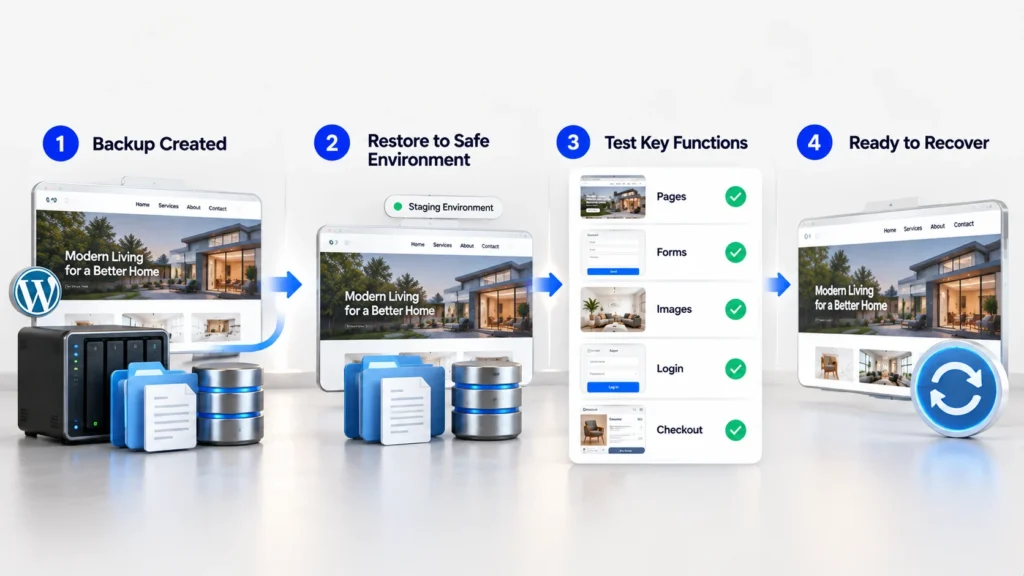
A Backup Is Not Proven Until You Can Restore It
This is one of the most overlooked parts of website backup.
You can have dozens of backup files and still discover a problem when you actually need to recover the site.
A backup should therefore be tested.
WordPress’s own upgrade guidance emphasizes verifying that backups exist and are usable before proceeding with significant changes.
If your backup solution supports staging or test restores, use that capability where appropriate.
Check whether:
- The homepage loads
- Key pages work
- Images appear correctly
- Forms work
- Login works
- Ecommerce functionality works
- Important database information is present
- Links behave correctly
- The restored version matches the expected date
The purpose of a restore test is not to create extra technical work.
It is to answer one important question before an emergency does:
Can I actually recover this website?
Take a Fresh Backup Before Risky Changes
A scheduled backup is useful, but it should not replace a deliberate backup before a major change.
Before you:
- Update several major plugins
- Change a theme
- Redesign important pages
- Modify the database
- Move hosting
- Change domains
- Make significant WooCommerce changes
- Perform major development work
take a fresh backup first.
This gives you a clear recovery point immediately before the change.
Some of the solutions discussed above offer automated backup-before-update functionality, but even then, it is worth understanding exactly what is being backed up and where that backup is stored.
Do Not Confuse Backup With Security
A backup helps you recover from certain problems.
It does not stop those problems from happening.
If your website is hacked, for example, a backup can potentially help you return to a clean version, but it does not replace security practices such as software updates, secure authentication, access control, monitoring, and vulnerability management.
WordPress’s security guidance also emphasizes maintaining regular backups and protecting the integrity of backup data.
Think of backup as part of a wider protection and recovery strategy.
You are not choosing between security and backups.
You need both.
How to Choose the Right Backup Solution for Your Website
Instead of asking which plugin is the “best,” start with your own website.
Ask these questions:
How often does my website change?
A website that changes several times a day may need a different approach from one updated once a month.
How much recent data can I afford to lose?
If losing yesterday’s enquiries would create a serious problem, your backup schedule needs to reflect that.
Where are my backups stored?
Look for independent or remote storage rather than relying entirely on the same server as the website.
Can I restore the site without complicated manual work?
Recovery matters just as much as backup creation.
Can I test a restore?
If you cannot confidently test recovery, you do not have the same level of certainty about your backup system.
Does the solution fit how I manage the website?
If you frequently migrate, redesign, stage, or update WordPress, features that support those workflows may matter more than a simple backup button.
What Business Owners Should Do First
You do not need to install five backup plugins.
In fact, doing so can create unnecessary complexity.
Choose one backup system that fits your website, configure it properly, send backups to an appropriate off-site destination, and establish a recovery process.
Then keep an eye on whether backups are actually completing.
If your website is commercially important, also consider maintaining another independent layer, such as your hosting backup or a separate backup destination. The goal is not to collect backup tools. The goal is to avoid having a single point of failure.
What Matters Most
The right WordPress backup solution is the one that fits the way your website actually operates.
A simple service website may need dependable scheduled backups and remote storage. A frequently changing website may benefit from more frequent or incremental protection. An ecommerce or membership site may need a recovery approach that accounts for ongoing database changes. A website undergoing frequent development may benefit from staging and backup-before-update workflows.
The five solutions covered here give you different ways to approach that problem. UpdraftPlus focuses heavily on flexible backup and storage control, Jetpack VaultPress Backup emphasizes real-time cloud protection, BlogVault combines backup with staging and recovery management, Solid Backups provides a cloud-oriented backup workflow, and WPvivid combines backup with migration and flexible storage options.
The important decision is not which product has the longest feature list. It is whether your chosen system gives you a recent, accessible, off-site backup and a restore process you have confidence in.
A backup only becomes valuable when it can help you recover.